Link a PDF schematic to its boardview
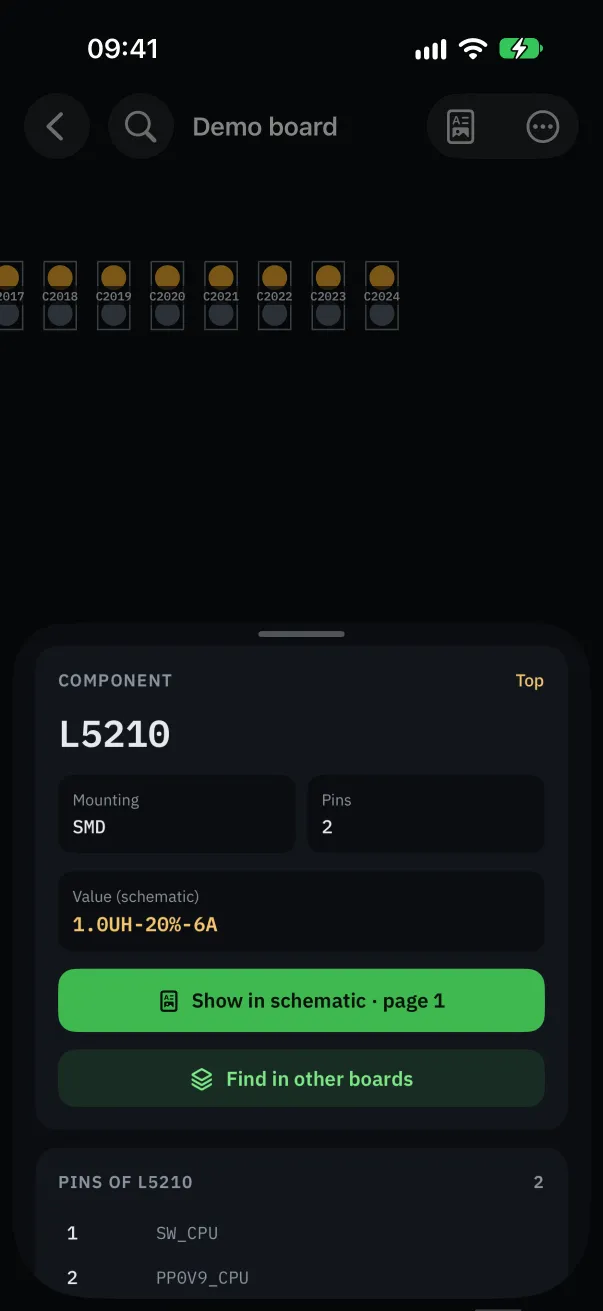
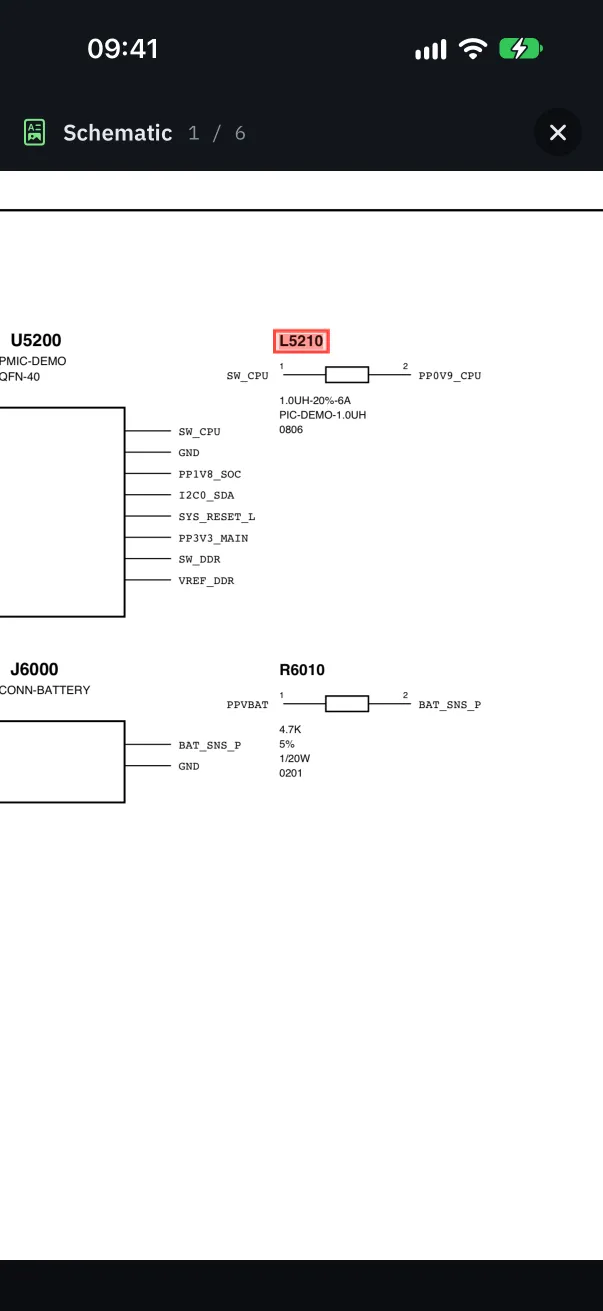
Once the schematic is linked, tapping a component opens the right schematic page with the reference highlighted, and its value shows in the details. Here are the three ways to link it, and the usual causes when it doesn't work.
Before you start: where is your PDF?
The app looks for the schematic where the system keeps files: the Files app on iPhone and iPad (on the device or in iCloud Drive), the Finder on Mac, the file picker on Android.
A PDF received as an email attachment or opened in the browser isn't there yet. Save it first: Share button then “Save to Files” on iPhone and iPad, or download it to a folder of your choice elsewhere.
If the schematic is inside a ZIP or RAR archive, either import the whole archive (see below) or extract the PDF first.
From the open board
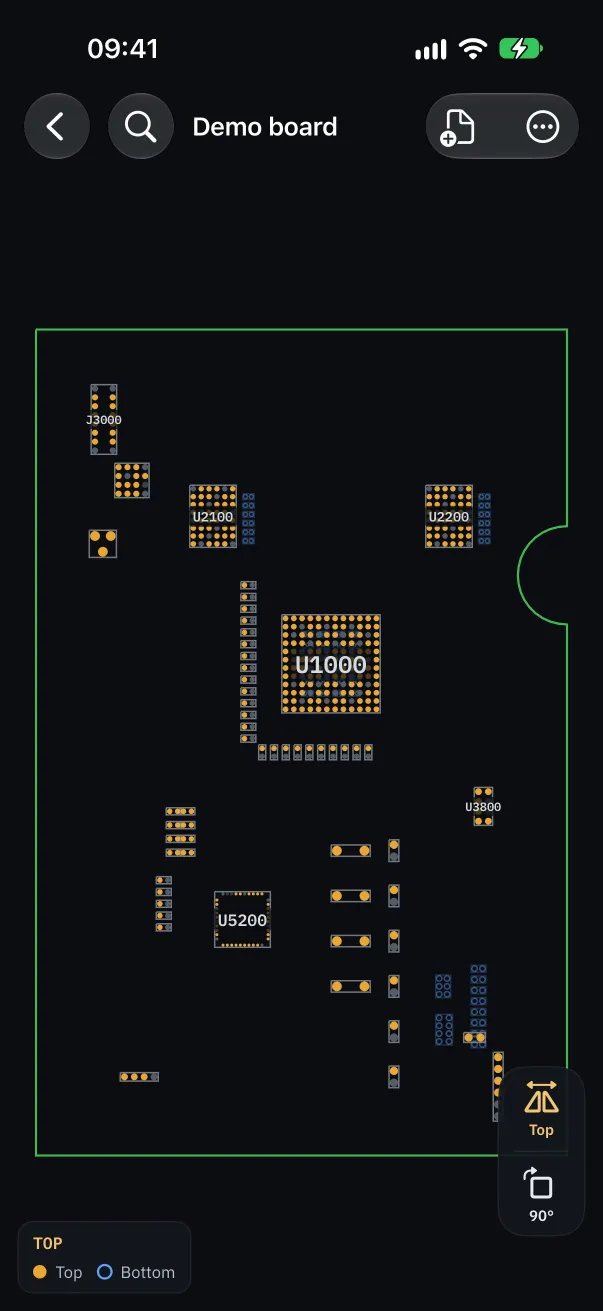
Open the board, then tap “Attach schematic” in the toolbar. Pick the PDF: it opens right away, next to the board on tablet and computer, full screen on phone.
The button is then called “Schematic”: it opens the schematic at the page of the selected component, or of the highlighted net.
The details panel also offers “Attach schematic” as long as no schematic is linked.
From the library
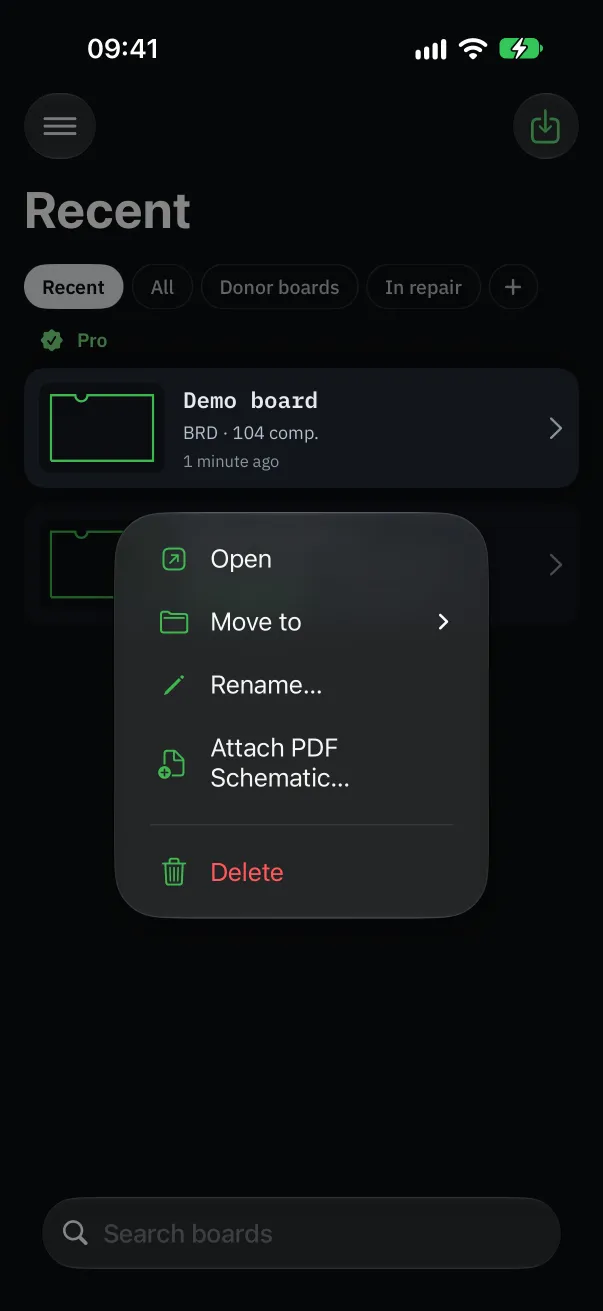
Long-press the board (right-click on computer) and choose “Attach PDF Schematic…”. A small schematic icon then appears on the board.
The same menu offers “Replace PDF Schematic…” and “Remove Schematic”: handy if you linked the wrong revision.
At import, automatically
Import the boardview and the PDF together: if both files have the same name (for example 820-02016.brd and 820-02016.pdf), the schematic is linked automatically.
A ZIP or RAR archive containing the boardview and its schematic does the same. And if you import a folder containing one boardview and a PDF, they are linked whatever their names, and the board takes the folder's name.
The schematic won't link: usual causes
The PDF doesn't show in the picker: it isn't saved in Files (or in a folder on the device) yet. This is the most common cause on phones.
Nothing happens, or the app offers to upgrade to Pro: the linked schematic is a Pro feature. It is unlocked during the 48-hour free trial, and always on the demo board, so you can try it.
“This PDF can't be opened.”: the file isn't a real PDF (an image, a saved web page, a protected or damaged PDF). Open it in another reader first to check.
The schematic opens but says “… doesn't appear in the schematic.”: it is often a scanned schematic, made of page images with no text. The app can't read references in it. It also looks for references exactly as written: a schematic from another board revision may name components differently.
What a linked schematic gives you
In a component's details: its value read from the schematic (capacitance, resistance, part number) and “Show in schematic”, which opens the right page.
In the schematic, tap a reference then “Show on board”: the board view centers on the component. It works both ways, with no searching.
The first read of a large schematic takes a few seconds (“Reading schematic…”); it is kept afterwards.