Find a component and follow a power rail
The first step of any diagnosis: locate the faulty power rail and everything connected to it. With BoardView Reader, one search and one tap are enough.
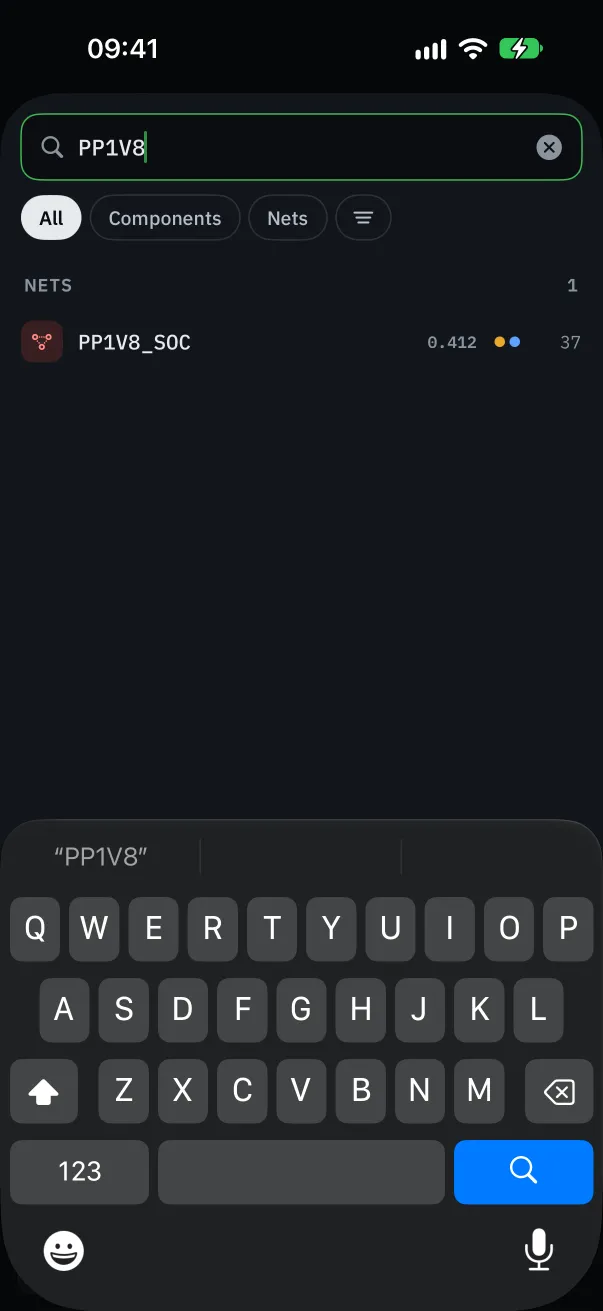
Search for a component or a net
Tap “Search” and type a component reference (U7700, C1234, Q5200) or a net name (PP3V3_S5, PPBUS_G3H). Results update with every letter.
Pick a result: the board centers on it and highlights it, even if it's on the other side.
To keep only signals, check “Hide GND and power rails (PP…)” in the filters: the net list becomes readable on a board with thousands of components.
Follow a whole net in one tap
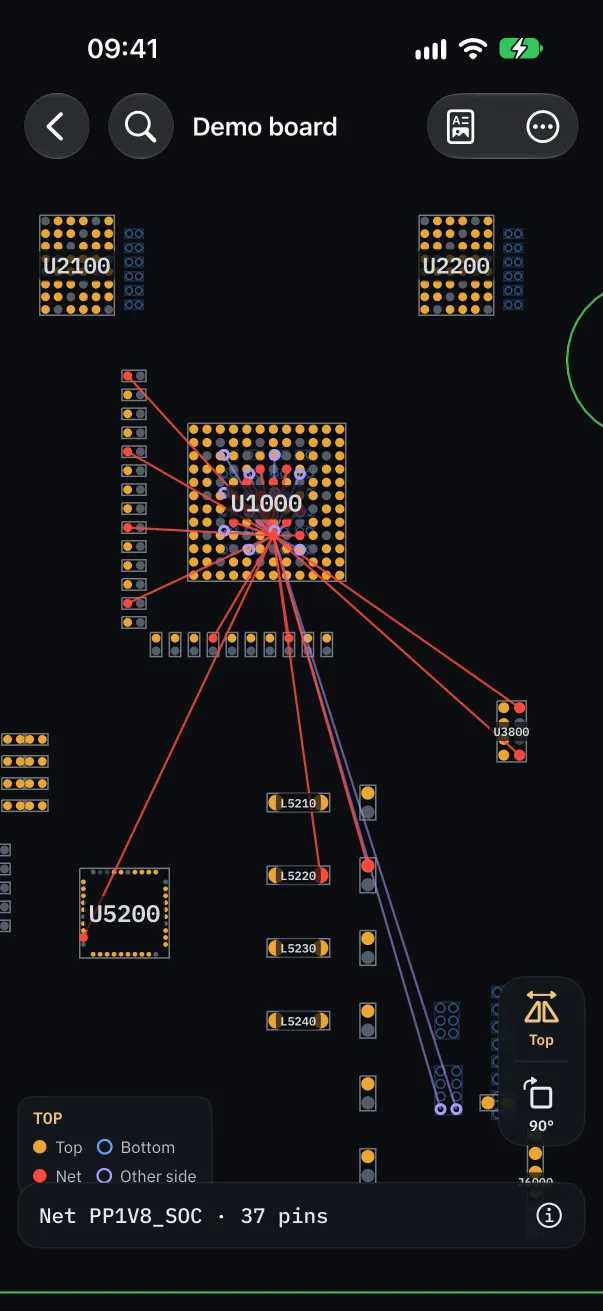
Tap a pin: a line runs to every pin of the same net, across the whole board. You see at a glance where the line goes and every component connected to it.
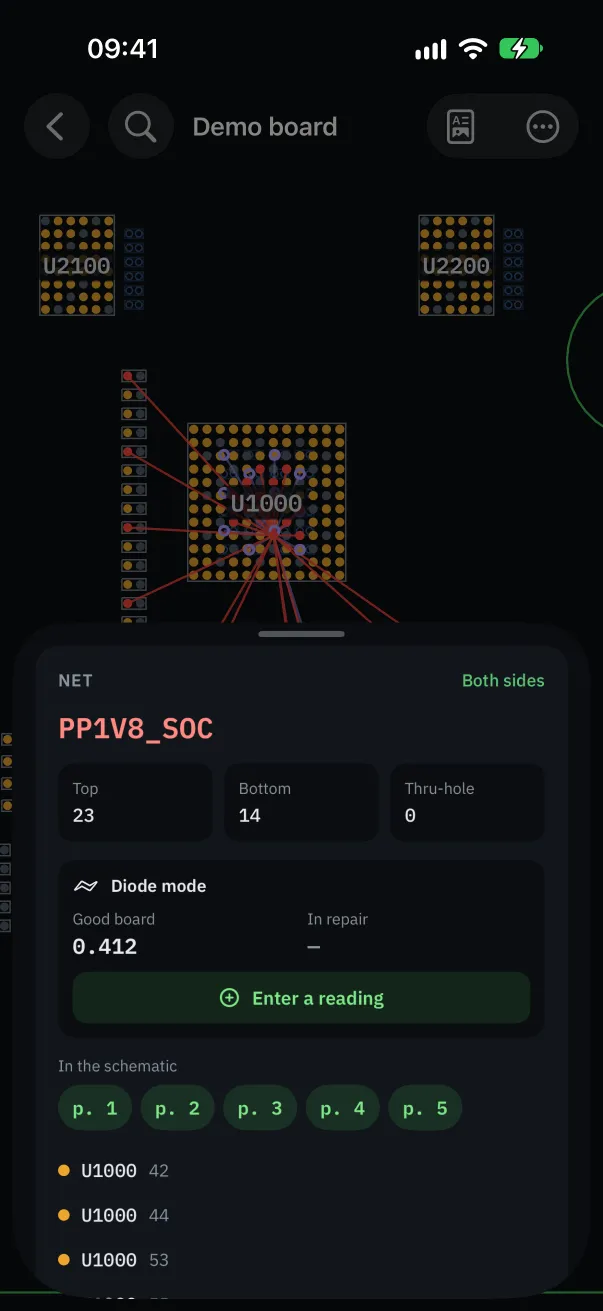
Pins on the other side appear as hollow circles. The net's details show how many pins it has on each side.
It's the right starting point for a shorted rail: all the net's decoupling capacitors are there, to measure or heat one by one.
Both sides of the board
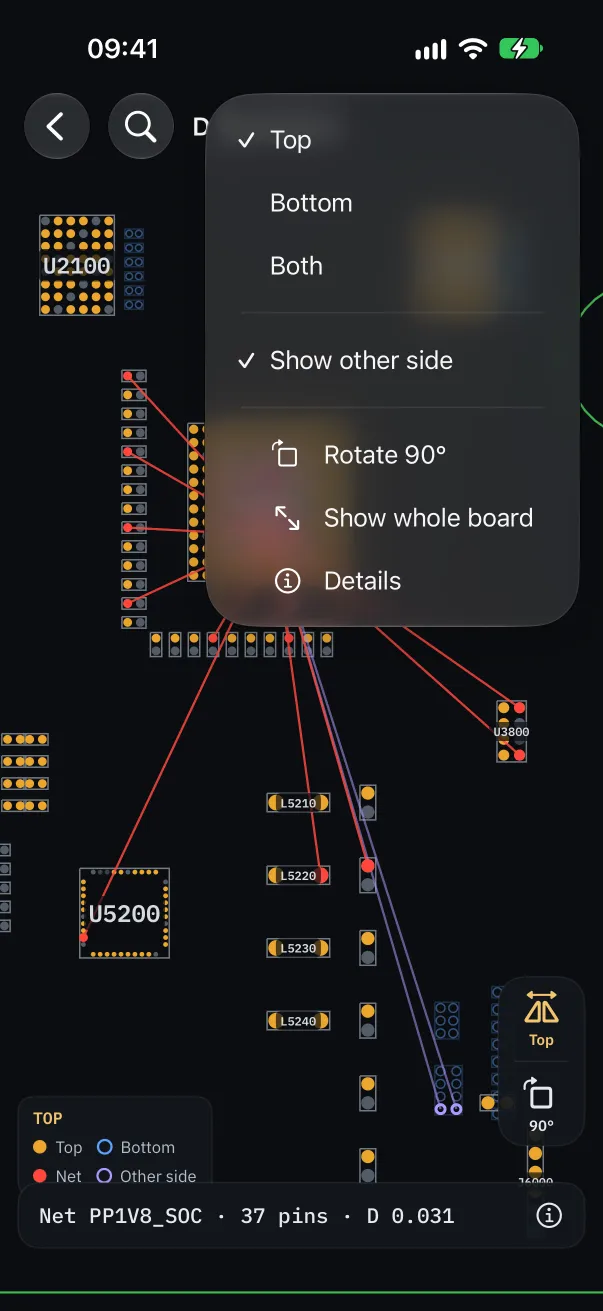
“Flip Board” switches to the bottom side, mirrored as when you turn the board over on the bench.
“Show other side” overlays both sides, each in its own color: handy to know what sits under a component.
“Rotate 90°” turns the board the way it lies in front of you, and “Show whole board” reframes everything.
A component's details
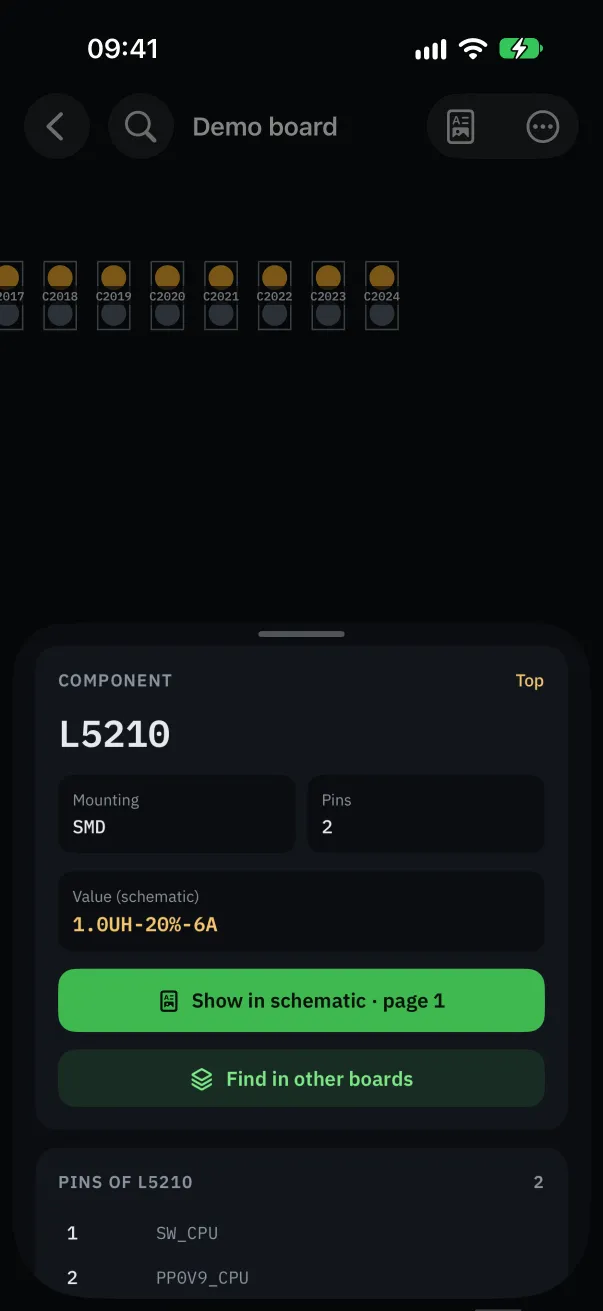
Tap a component to open its details: pin count, net of each pin, and, if the schematic is linked, its value and the schematic page it's on.
From a pin, tap the net to follow it; from the net, go back to the component. Everything happens without leaving the board.
On computer: mouse and keyboard
The scroll wheel zooms, dragging moves the board, and keyboard shortcuts open search, the schematic, the details or flip the board. They can be changed in “Keyboard Shortcuts”.